
Connect Slack notifications
This guide walks you through creating a Slack Incoming Webhook and connecting it to Dependra so you receive real-time health-change alerts in your Slack channels.
Prerequisites
- A Dependra account with Admin role
- A Slack workspace you can install apps into
- Your plan must include the Slack Notifications feature
Step 1: Open the Slack API portal
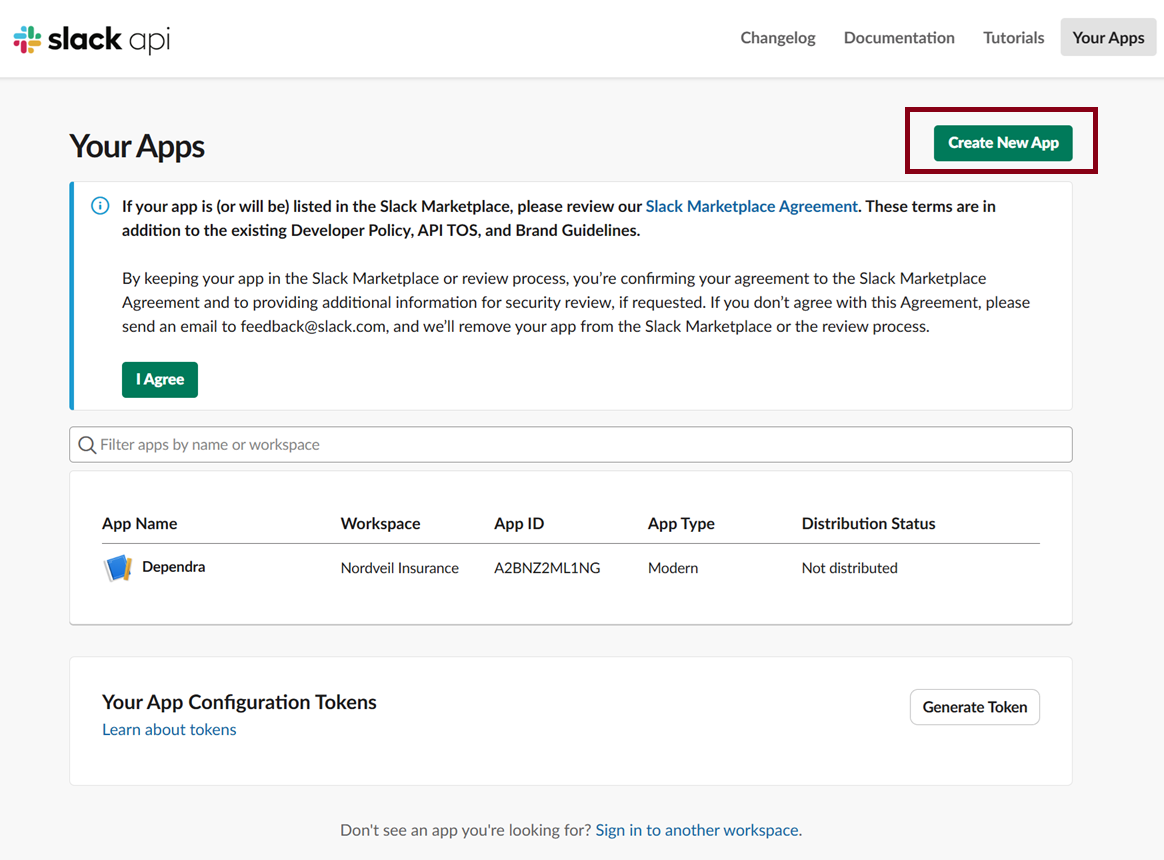
Go to api.slack.com/apps. You will see your existing apps (if any). Click Create New App in the top right corner.
Step 2: Choose Blank App
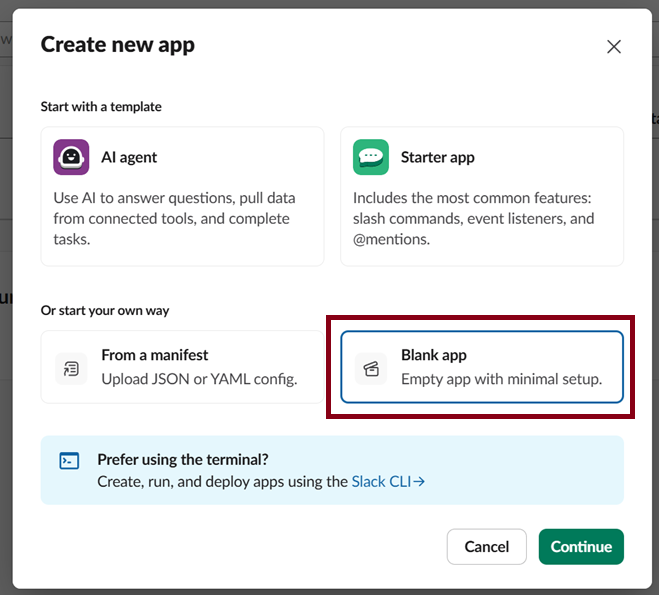
In the dialog, select Blank app under “Or start your own way”. This gives you a minimal app with just the features you need.
Step 3: Name the app and pick your workspace
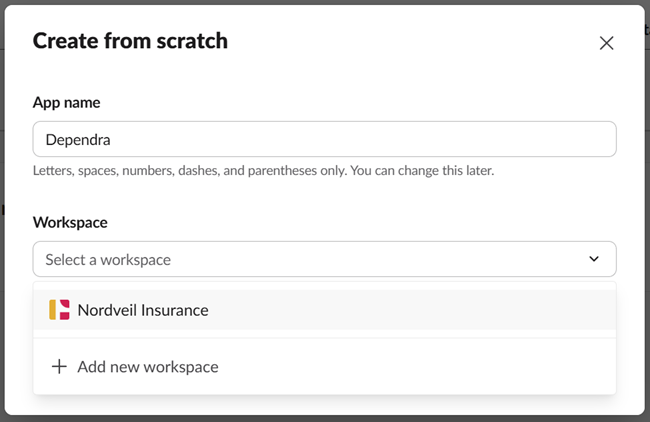
Give the app a recognisable name (e.g. “Dependra”) and select the Slack workspace where alerts should go. Click Create App.
Step 4: Enable Incoming Webhooks
After creating the app you land on the Basic Information page.
- In the left sidebar, click Incoming Webhooks.
- Toggle Activate Incoming Webhooks to On.
Step 5: Add a webhook to a channel
- Scroll down and click Add New Webhook to Workspace.
- Slack asks you to pick a channel — choose the channel where you want health alerts to appear (e.g.
#ops-alerts). - Click Allow.
You now see a Webhook URL that looks like:
https://hooks.slack.com/services/T00000000/B00000000/your-webhook-tokenClick Copy to copy it to your clipboard.
Keep this URL secret — anyone who has it can post messages to your channel. Dependra encrypts it at rest and never exposes it in logs or API responses.
Step 6: Paste the URL into Dependra
- In Dependra, go to Settings → Slack Notifications.
- Paste the webhook URL into the Catch-all channel field and click Save.
- You should see the status change to “Webhook URL configured”.
That’s it — Dependra will now post a Block Kit message to your Slack channel whenever a component’s health state changes.
Optional: Per-domain channels
If you want different business domains to post to different Slack channels, repeat steps 5–6 for each channel and configure the per-domain webhook URL in the Business Domains section of the Slack settings page.
Troubleshooting
| Symptom | Fix |
|---|---|
| “URL must start with https://hooks.slack.com” | Make sure you copied the full webhook URL, not the app ID or another link. |
| Messages not arriving | Check the Delivery History section in Dependra’s Slack settings — it shows the HTTP status of each attempt. |
| Wrong channel | You can remove the webhook in Slack and create a new one pointing to the correct channel, then update the URL in Dependra. |