
Connect Atlassian (Confluence & Jira)
Dependra connects to Atlassian through two apps on the Atlassian Marketplace:
- Dependra for Confluence — publishes your architecture documentation as Confluence pages, and keeps them up to date.
- Dependra for Jira — drives Jira Key Results from JQL filters (issue count, story point sum, or a custom numeric field).
Install only the one you need, or both. Connecting takes one code and about two minutes — there are no OAuth credentials to create, copy, or rotate.
If your organisation does not allow Marketplace apps, or you want to decide exactly which permissions Dependra gets, connect with an Atlassian service account instead. One service account covers both products.
Prerequisites
- A Dependra account with the Admin role
- Administrator access to the Atlassian site you want to connect
- Your plan must include the relevant feature — Confluence Integration for publishing, Jira Key Results for Jira-driven KRs
Step 1: Install the app from the Atlassian Marketplace
In the Atlassian Marketplace, find Dependra for Jira or Dependra for Confluence and install it on your site. Both apps are free — you pay only for Dependra itself.
An app installs per product, so connecting both Jira and Confluence means installing both apps. They connect to the same Dependra organisation.
Step 2: Generate a connection code in Dependra
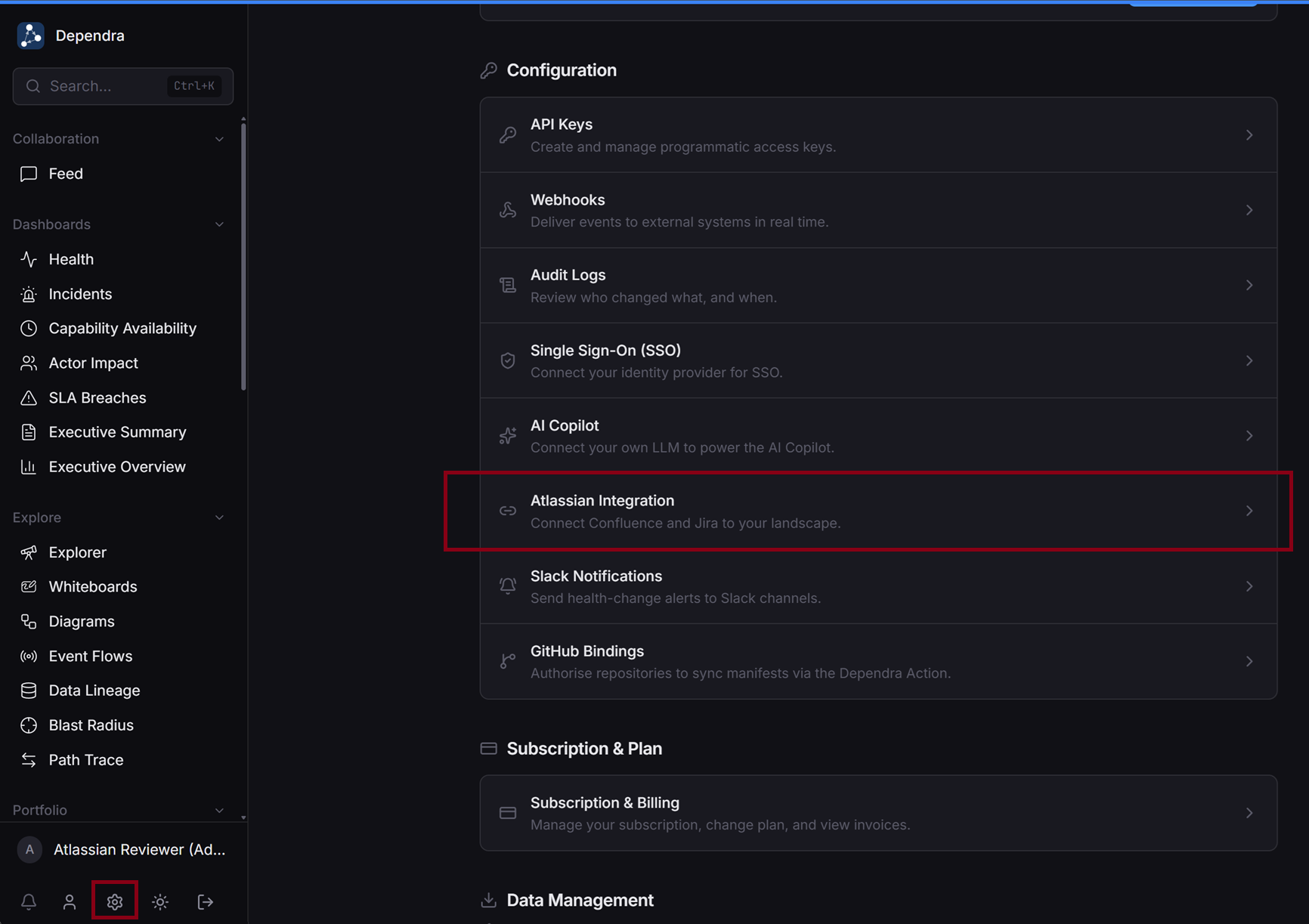
- In Dependra, open Settings (the gear icon at the bottom of the sidebar) and choose Atlassian Integration.
- Under Dependra Forge Apps, click Generate connection code, then Copy code.
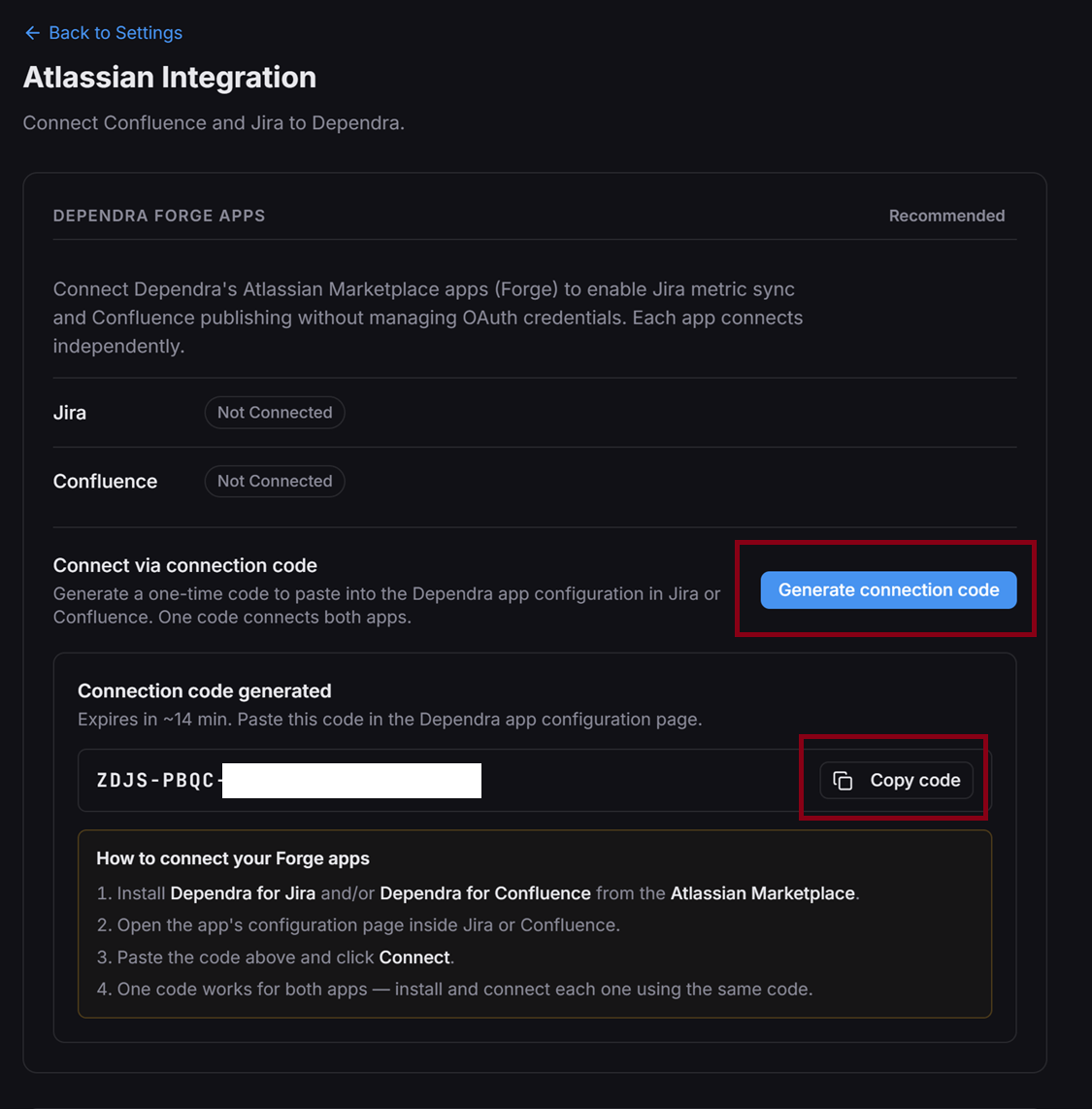
One code connects both apps — generate it once and paste it into each app you installed. The code is single-use per product and expires after 15 minutes; if it lapses, generate a new one.
Step 3: Paste the code into the Atlassian app
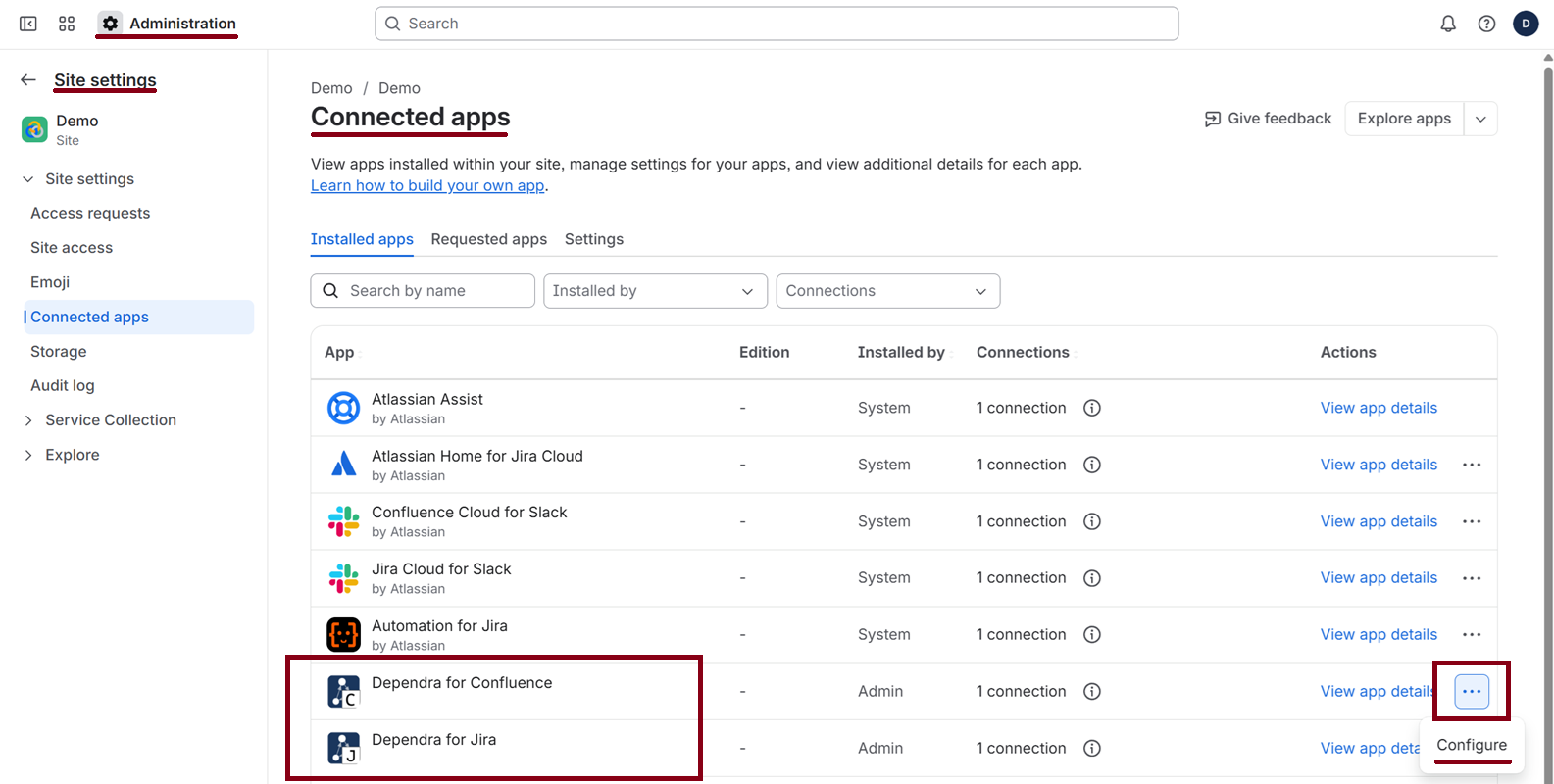
In your Atlassian site, open Administration → Site settings → Connected apps. Find Dependra for Jira or Dependra for Confluence in the list, click the … menu on that row, and choose Configure.
Paste the connection code and click Connect.
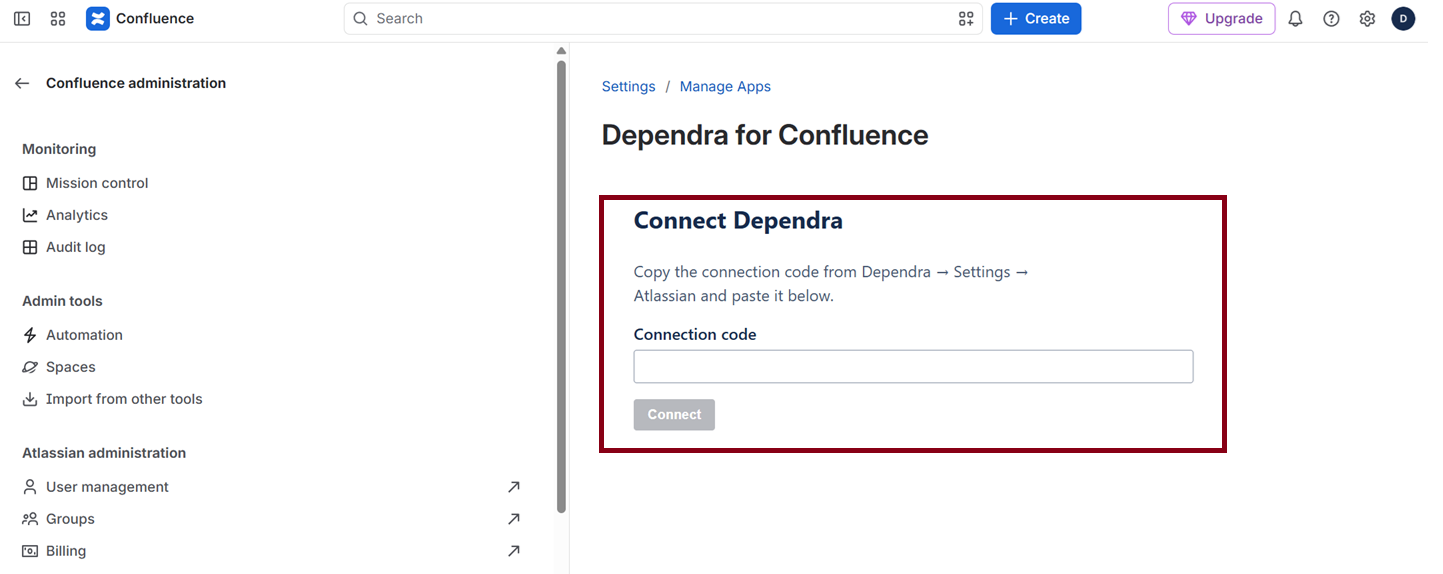
The app reports success immediately. Back in Dependra, Settings → Atlassian Integration shows the product as Pending until Atlassian delivers the app’s access token, which happens within the hour — after that it shows Connected along with your site name.
Pending is normal. Atlassian issues the app token on a scheduled trigger rather than at connect time, so a fresh connection sits in Pending for up to an hour before the first sync can run. Nothing is wrong, and no action is needed.
What each app is allowed to do
Permissions are fixed by the app and shown to you at install time. There is nothing to configure.
Dependra for Confluence
| Permission | Why |
|---|---|
read:space:confluence |
Resolve the space you select as the publishing destination |
read:page:confluence |
Detect pages Dependra published before, so they are updated rather than duplicated |
write:page:confluence |
Create and update the documentation pages |
delete:page:confluence |
Retire a page when its source entity is removed from your model |
read:app-system-token |
Publish on a schedule as the app, not as a person |
Dependra only ever touches pages it created. A page with child pages you wrote is never deleted — it is replaced with a notice pointing at the replacement, so your own content is never cascade-deleted.
Dependra for Jira
| Permission | Why |
|---|---|
read:jira-work |
Required by Jira’s search and JQL endpoints |
read:jql:jira |
Run and validate the JQL behind a Key Result |
read:issue-details:jira |
Read one numeric field value per issue, for story-point and custom-field modes |
read:project:jira |
Resolve projects referenced in your JQL |
read:board-scope:jira-software |
Resolve boards and sprints referenced in your JQL |
read:app-system-token |
Query Jira on a schedule as the app, not as a person |
The Jira app is read-only. It requests no permission to create, update, transition, or delete anything.
Why an app rather than an OAuth connection
The Marketplace apps authenticate as the app, not as the person who set them up. In practice that means:
- The connection survives people leaving. No token is tied to an individual account, so nobody’s departure or password change breaks the sync.
- Nothing to configure or rotate. No developer console, no client secret, no callback URL.
- Reach doesn’t depend on who clicked Connect. The app’s permissions are the same regardless of what the installing administrator can personally see.
- Auditable in Atlassian. The app appears in your site’s app list, with its permissions visible, and can be uninstalled there at any time.
Disconnecting
In Dependra, go to Settings → Atlassian Integration and click Disconnect on the product you want to detach. This removes the stored token and stops all syncing.
Uninstalling the app in Atlassian also stops the connection: the scheduled trigger no longer runs, so Dependra’s token goes stale within the hour and no further calls succeed.
Publishing to Confluence
Once connected, choose the destination space and enable auto-sync for individual applications and business domains. Published pages are created and updated automatically as your model changes.
Jira Key Results
With the Jira app connected, you can drive a Key Result from a JQL filter. See the Jira Key Results guide for metric modes, JQL examples, sync behaviour, and query limits.
Troubleshooting
| Symptom | Fix |
|---|---|
| Status stuck on Pending for more than an hour | Confirm the app is still installed in Atlassian and has not been disabled. Reinstalling and reconnecting issues a fresh token. |
| “Invalid or expired code” | Codes are single-use per product and expire after 15 minutes. Generate a new one in Dependra. |
| The configuration page shows a connection error | The app talks to dependra.io. Check any network policy or proxy that might block it, then retry. |
| Disconnect shown for a product you never connected | Reload the page — the status is fetched when the settings page opens. |
| Jira KR sync error mentioning scope | Reinstall the app so the current permission set is granted; permissions are fixed by the app and cannot be edited by hand. |
| Jira rejects a query as unbounded | Jira refuses JQL with no bounding clause. Add a project, filter, or date constraint. See Jira Key Results. |
| Service account shows no product access for a product | The account has no product access to that product in Atlassian Administration, or the credential was created without that product’s scopes. Grant access, create a new credential with the scopes, and use Rotate credentials. |
| Service account shows missing scope | The credential lacks one of the scopes listed under Step 1. Scopes cannot be edited on an existing credential — create a new one and rotate. |
| Service account shows credentials rejected | The credential was revoked or the secret was mistyped. Create a new credential in Atlassian Administration and rotate. |
Alternative: connect with a service account
A service account is a non-person identity your Atlassian organisation administrator creates in Atlassian Administration → Directory → Service accounts. Dependra authenticates with the account’s OAuth 2.0 client credentials, so the connection belongs to your organisation, not to whoever set it up, and it carries only the permissions you grant it. Atlassian includes five service accounts per organisation at no charge.
Choose this path when:
- your organisation does not permit Marketplace apps, or
- you want to grant Jira access without Confluence (or the reverse), or
- your security team prefers an identity it can see, scope, and revoke in Atlassian Administration.
Step 1: Create the service account and its credential
- In Atlassian Administration, open Directory → Service accounts and create a service account (a name such as Dependra is enough).
- Give it product access to Jira and/or Confluence, and make it a member of the groups that can see the projects and spaces Dependra should work with. Scope alone does not grant access — the account also needs the same product and space permissions a person would.
- Open the service account, choose Create credentials → OAuth 2.0, and select the scopes below. Copy the client ID and client secret: Atlassian shows the secret only once.
Jira (read-only): read:jira-work, read:jql:jira, read:issue-details:jira, read:project:jira
Confluence: read:space:confluence, read:page:confluence, write:page:confluence, delete:page:confluence
Grant only the product you intend to use. Dependra checks each product separately, so a credential with only the Jira scopes runs Jira Key Results while Confluence publishing stays off — and tells you which scope is missing if you enable it later.
Step 2: Connect in Dependra
In Settings → Atlassian Integration, open Service account, paste the client ID and client secret, and click Connect. Dependra verifies the credential immediately and shows, per product, whether it is usable and why not if it isn’t. The secret is stored encrypted and is never shown again; use Rotate credentials to replace it.
Where a Marketplace app is also installed, the app takes precedence for that product.
Keeping it healthy
Dependra re-checks the connection daily and after any request Atlassian rejects. If the credential is revoked or a permission is withdrawn, the affected product is marked and the settings page shows the reason; Test connection re-runs the check on demand. Revoking the credential in Atlassian Administration ends the connection at once.
Older OAuth 2.0 (3LO) connections. The previous way of connecting — registering your own app in the Atlassian Developer Console — has been retired along with Atlassian’s deprecation of that model. If your organisation was connected that way, reconnect with a Marketplace app or a service account; nothing else in your Dependra configuration changes.