
Strategy & OKRs
Strategy & OKRs is available on Enterprise and custom plans.
The strategy layer lets teams set objectives, track them with key results driven by live landscape data, and connect quarterly goals to the initiatives — and therefore the systems — doing the work. It is not a standalone OKR tool. It is OKR intelligence rooted in the architecture model.
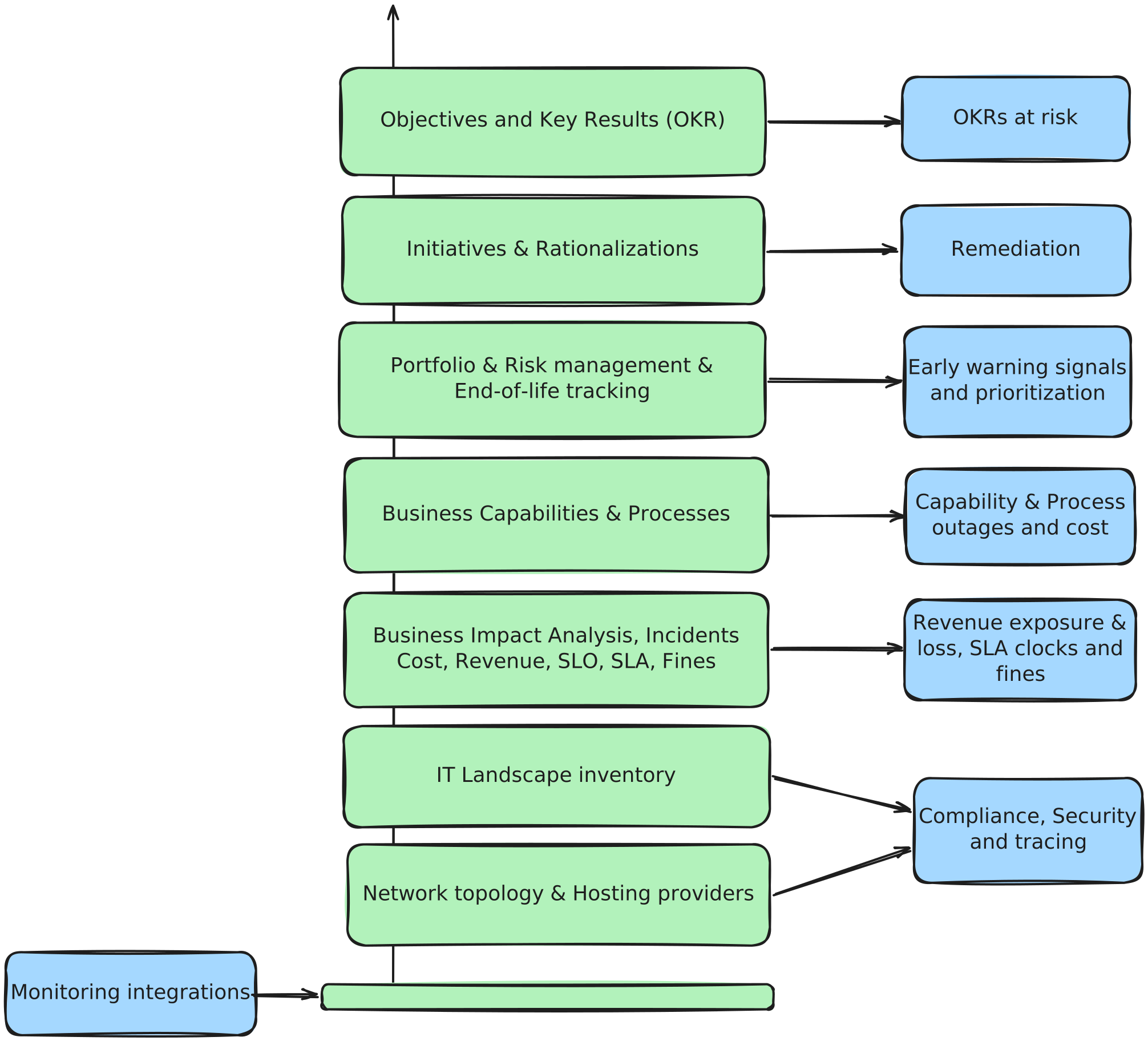
Signals flow both ways. A health signal entering at the bottom — a toppled database replica, an offline API, a misbehaving firewall — climbs through components, applications, processes and capabilities until it surfaces on the objective it threatens. And a strategy question at the top drills down the same graph to the exact component carrying the goal. For two fully worked examples of the complete model, see the Domain Model page.
Cycles
A Cycle is a time-bounded OKR period — quarterly, annual, or custom — owned by a team. It moves through four states:
| State | Meaning |
|---|---|
| Planning | Cycle is being set up; objectives and key results are drafted |
| Active | Cycle is live; check-ins and computed updates are running |
| Scoring | Cycle end reached; final values locked, scoring in progress |
| Closed | Cycle archived; carry-forward selected |
Carry-forward
When closing a cycle, the owner selects which Key Results to carry into the next cycle. For each carried KR:
- The current value becomes the new start value, so relative goals (−20%, +15%, 400 k) re-evaluate against the fresh baseline.
- The KR retains a lineage pointer to its predecessor, so history is preserved across cycle boundaries.
- Goal expressions re-compute: a KR targeting “−20% relative to start” remains valid regardless of where the baseline moved.
Objectives
An Objective is a qualitative goal — a direction statement, not a number. It belongs to a team and optionally to a cycle. Any team member can read all objectives in the tenant; only team members may write.
Objective progress is the weighted average of its Key Results. There is no separate progress field to maintain manually.
Key Results
A Key Result (KR) is a metric with start and target values. Progress is computed as:
progress = (current − start) / (target − start)This formula handles both increase goals (target > start) and reduce goals (target < start) without a direction toggle. A KR targeting a 20-point reduction is automatically at 100% when current reaches target, and goes negative if the metric moves the wrong way.
KR properties
| Property | Details |
|---|---|
| Metric type | Number, Currency, Percentage, or Boolean |
| Cadence | Daily, Weekly, or Monthly — sets the expected check-in frequency |
| Owner | Optional per-KR owner (independent of the objective’s team) |
| Display weight | Relative weight used in the objective’s progress average |
| History | Full time-series of every value update, with status and comment |
| Staleness | Indicator shown when the cadence deadline has passed without a check-in |
The three drive modes
Every KR uses exactly one drive mode:
Manual check-ins — A team member records the current value, a status (On Track, Behind, or At Risk), and an optional comment. Check-ins are versioned; previous entries can be amended or deleted. The cycle’s check-in view puts every key result on one screen, saved in a single action — one sitting for the whole team’s update.
Computed (landscape metric) — Choose one of 104 built-in metrics. A scheduled sweep (hourly by default) populates the value automatically. The baseline is locked at KR creation, so a goal expressed as “−20%” is always relative to the landscape as it was when the KR was created. A freshly created computed KR may show no value until the first sweep completes (up to one hour after creation).
Jira or API push — Pull values from a Jira JQL filter or POST them directly from your own tooling. See Jira Key Results and Push Key Result Values via API.
Computed metrics — the 15 groups
The 104 built-in metrics span 15 groups:
| Group | Representative metrics |
|---|---|
| OKR rollup | Child KR rollups (average/sum/min/max), check-in freshness, at-risk KR count, objective achievement rate, alignment coverage |
| Health & availability | Landscape health score, capability availability, MTTR, uptime %, downtime hours |
| Incidents & SLA | Incident frequency, resolution time, SLA breach count, compliance rate, penalty exposure, P1 count |
| Blast radius & resilience | SPOF count, maximum chain depth, redundancy coverage, resilience score |
| Risk | Aggregate risk score, high/critical risk count, unmitigated risk count |
| Actor & revenue impact | Revenue at risk, revenue lost to incidents |
| Technology & tech radar | EOL component count, tech debt ratio, standardization score |
| Portfolio TIME | Classification coverage, Tolerate/Invest/Migrate/Eliminate counts, migration completion, apps retired |
| Lifecycle roadmap | Past end-of-life count, approaching end-of-life, planned retirements, on-track retirement rate |
| Data lineage & GDPR | PII dataset count, cross-boundary data flows, GDPR scope exposure, classification coverage |
| Documentation quality | Documentation coverage, README coverage, missing descriptions, completeness score |
| Security & compliance | Auth gap count, encryption gap count, internet-facing unencrypted components, ownership gaps |
| Architecture & dependencies | Circular dependency count, coupling score, orphaned component count |
| Cost & IT spend | Total IT spend, cost per capability, cost per actor, cost delta |
| Process & governance | Process documentation coverage, process maturity, approval completion, ownership coverage |
When choosing a computed metric, prefer the one closest to the business outcome your Objective describes. A health metric is right for a reliability objective; a GDPR scope metric is right for a data-governance objective.
Risk signals
Risk signals are computed automatically and shown on the KR detail view. They traverse the chain: Objective → KR → linked Initiatives → initiative scope items → Components → incidents, health, and dependency data.
| Signal | Severity | Condition |
|---|---|---|
| Active incident on a scoped component | Critical | Any active incident; shows peak severity and component name |
| Component health degraded or worse | Warning / Critical | Component is degraded or warning (Warning) / in outage (Critical) |
| Linked initiative stale | Warning | Initiative not updated in 14+ days and not completed or dropped |
| High blast radius component in scope | Warning | A scoped component has 10 or more downstream dependents |
| Trajectory behind cycle plan | Warning / Critical | Progress 15+ percentage points behind expected (Warning) / 30+ points (Critical) |
Signals require no manual configuration. They update as landscape state changes.
Alignment
Objectives can contribute to other objectives across teams and cycles — a platform team’s quarterly objective feeding an organisation-level annual one, or several team objectives carrying a shared programme goal. Circular contributions are rejected, so the strategy graph stays coherent. The Alignment Map shows the whole picture at a glance: each team as a row, each objective as a card with its live progress, and contribution lines connecting them. Leadership sees how every team’s goals ladder up — and which branch of the tree is falling behind.
Initiatives
Each Initiative is linked per KR (M:N), recording which initiatives are driving that specific metric. This makes the connection between what we measure and what we are doing about it explicit and traceable. Initiative scope items (the components in scope) are the same scope items the risk signal engine traverses.
Shareable summaries
A cycle owner can generate a secure-token summary link — a public URL viewable without login, with an optional expiry date and optional email delivery to named recipients. Summaries are suitable for board reporting or stakeholder updates where recipients do not have Dependra accounts.
Plan availability
Strategy & OKRs is included in the Enterprise plan and available on custom plans. See pricing for the full plan comparison.